

















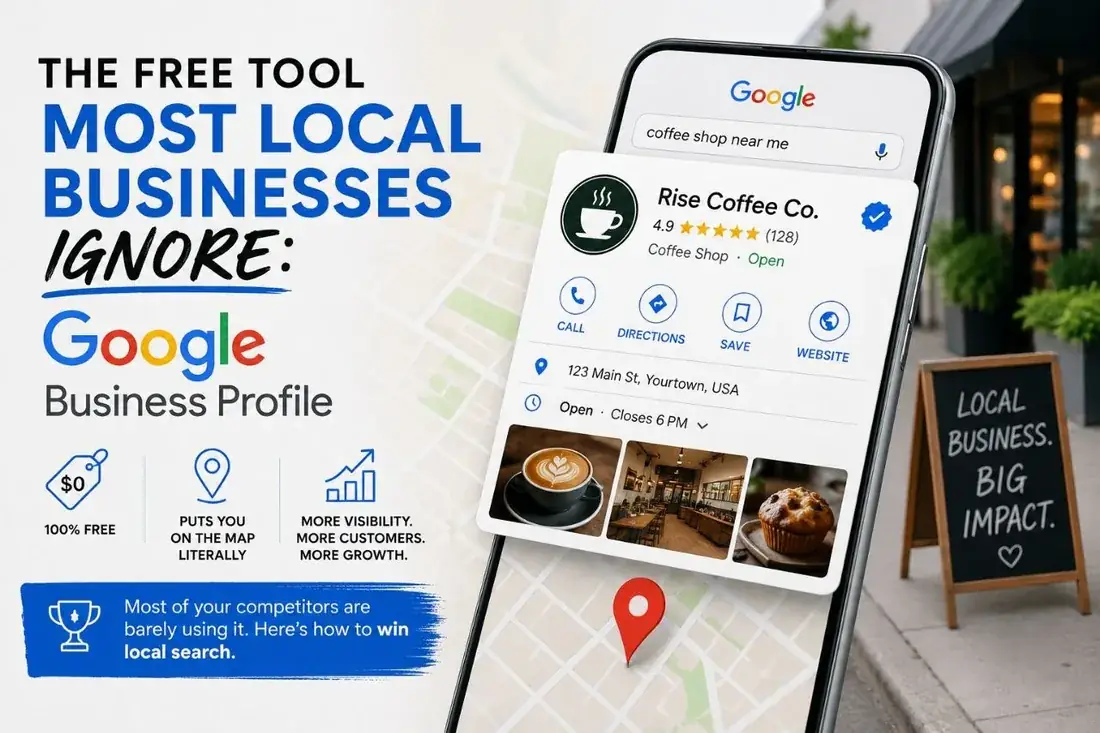




Google Business Profile (the platform formerly known as Google My Business) is the single most important free local-SEO asset most businesses have. Managing who has access to it cleanly is one of those small operational tasks that almost always gets put off until a problem forces it to be done. Here is the process, in plain steps, plus the gotchas most people learn the hard way.
- Three roles: Primary Owner (one only), Owner, and Manager.
- Agencies, employees and freelancers should be Manager — never Primary Owner.
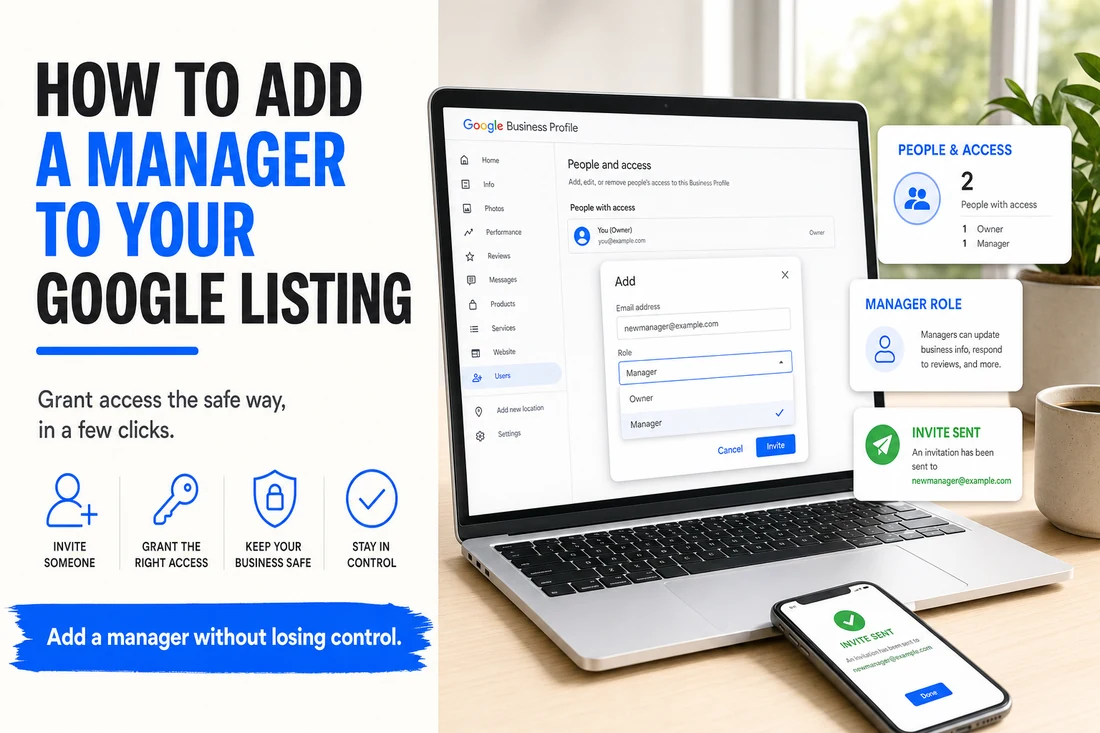
- Add managers via business.google.com → People and access; the invite must be accepted.
- Watch the seven-day owner-transfer cooling-off when firing an agency.
The three role types
Google Business Profile has three permission levels:
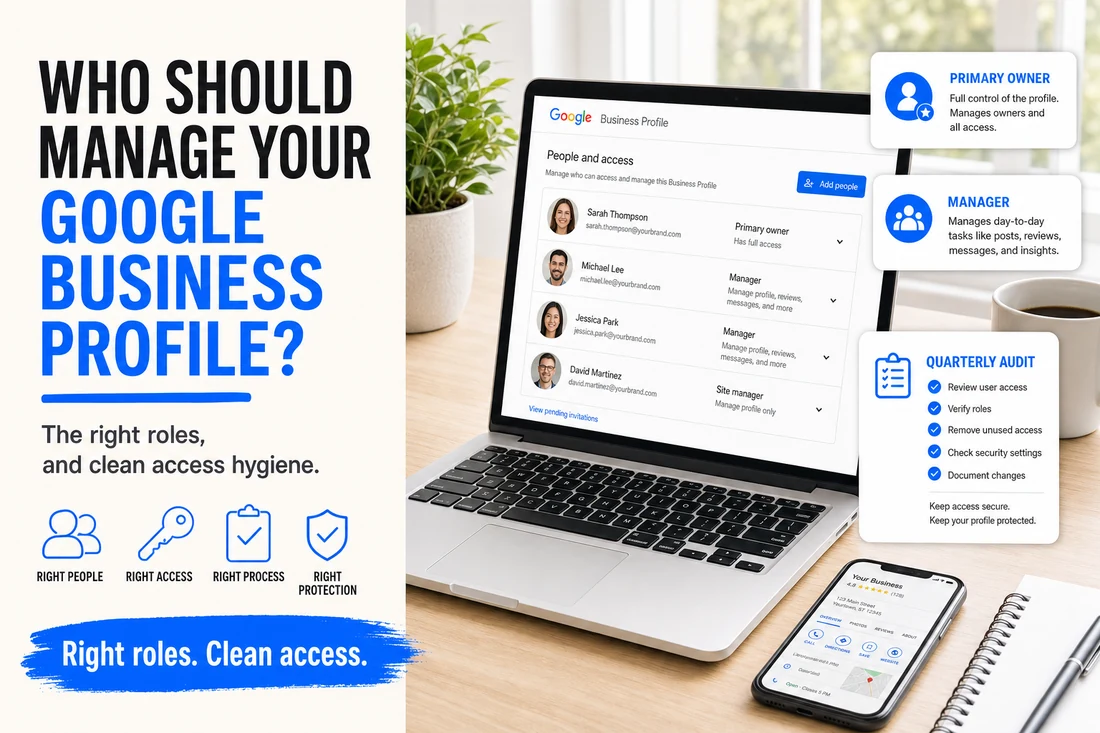
- Primary Owner — the original creator or whoever holds the top-level account. Can do everything, including deleting the profile and transferring ownership.
- Owner — can do almost everything an owner can, except remove the primary owner.
- Manager — can edit profile info, respond to reviews, post updates, and reply to messages, but cannot add or remove users or delete the profile.
For an agency, a marketing employee, or a freelance consultant, the Manager role is almost always the right one. For a co-founder or business partner, Owner. Only one person should be Primary Owner at a time.
Step-by-step: adding a manager
- Sign in to business.google.com as the Primary Owner of the listing.
- If you have multiple listings, find the one you want to share and click into it.
- Click the three-dot menu in the top right (or "Business Profile settings" depending on your view).
- Click People and access.
- Click Add, enter the email address of the person you want to add, then select Manager (or Owner) from the role dropdown.
- Click Invite.
The invitee gets an email and must accept the invitation. Once accepted, they have access immediately.
Gotchas most owners hit
- The invitation does not transfer verification. If the listing was verified via postcard, that verification stays on the listing — the new manager does not need to re-verify.
- Personal Gmail vs. Google Workspace. Either works. Most agencies prefer to be invited at their work email so access is tied to a controlled identity, not a personal one.
- Pending invitations expire. If the manager does not accept within a few days, the invite expires and you have to send another.
- Owner transfer has a seven-day cooling-off period. Once you transfer Primary Ownership, the new Primary Owner cannot remove the old one for seven days. Plan accordingly if you are firing an agency.
- "Business Manager" in Google's UI changed names. Some older instructions reference the old GMB dashboard. The current dashboard lives at business.google.com.
What we recommend for our clients
When NTL of NYC manages a client's Google Business Profile, we ask for the Manager role on a dedicated email address that only our team uses. Never the client's personal Gmail. Never the founder's account. This keeps a clean separation: when the engagement ends, we are removed and access reverts cleanly to the client without affecting any other Google services they use.
If you are bringing an agency on board, do the same. If the agency asks for Primary Owner access, push back — they should be Manager. Only your business should hold Primary Ownership of your own Google listing. Always.
Common questions
How do I add a manager to my Google Business Profile? Open your Business Profile settings, go to People and access, and invite the person by email with the appropriate role.
What roles can I assign? Mainly Owner and Manager. Managers can edit most information but cannot remove people or transfer ownership.
Is it safe to add a manager? Yes, when you assign the Manager role rather than Owner and review access periodically so former contractors do not keep it.