





















Email is still where business gets done — quotes, contracts, invoices, first impressions. Yet plenty of small businesses run on a free yourname@gmail.com or info@outlook.com address, which quietly costs them two things that matter: credibility and deliverability. A professional setup on your own domain fixes both. Here is how we configure it.
- Move off free inboxes to you@yourbusiness.com — you own the identity and it signals credibility.
- Pick one platform — Google Workspace or Microsoft 365 — and configure it properly.
- Publish SPF, DKIM and DMARC or your mail lands in spam.
- Finish with aliases, a consistent signature, and 2FA on every mailbox.
1. Use your own domain — not a free inbox
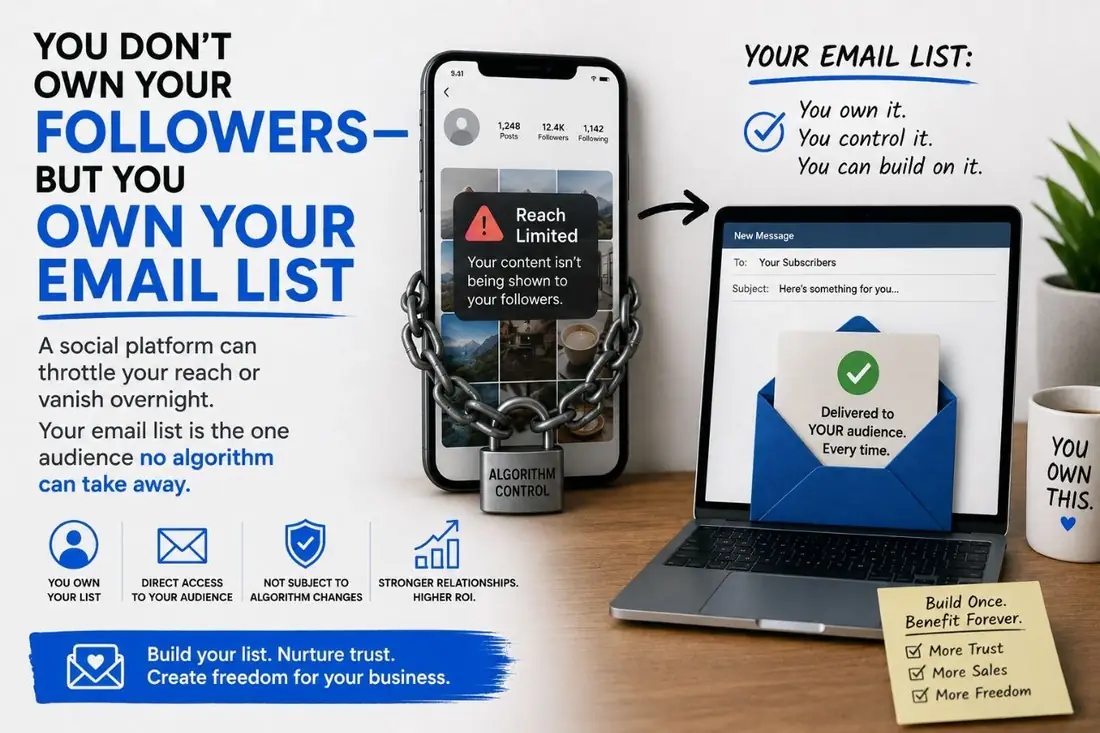
The single biggest upgrade is moving from a free address to you@yourbusiness.com. It signals legitimacy to every customer, it keeps your brand in front of them on every message, and — critically — it means you own the asset. If a free provider ever locks the account, you lose your business identity with it. A domain-based mailbox is yours, portable, and trusted.
2. Pick the right platform
For most small businesses it comes down to Google Workspace or Microsoft 365. Both give you domain email, calendar, storage and document tools at a few dollars per user per month. Workspace tends to suit teams that live in Gmail and Google Docs; Microsoft 365 fits businesses already standardized on Outlook and Office. What matters is choosing one and configuring it properly — not stitching together a free relay that breaks at the worst moment. Avoid running important mail through your cheap web host's built-in email; deliverability there is usually poor.
| Google Workspace | Microsoft 365 | |
|---|---|---|
| Best for | Teams that live in Gmail and Google Docs | Businesses standardized on Outlook and Office |
| Includes | Domain email, Calendar, Drive, Docs | Domain email, Calendar, OneDrive, Office apps |
| Cost | A few dollars per user / month | A few dollars per user / month |
3. Authenticate so you land in the inbox, not spam
This is the step almost everyone skips, and it is why their email lands in spam. Three DNS records tell the world your mail is genuinely from you:
- SPF — lists which servers are allowed to send for your domain.
- DKIM — cryptographically signs your messages so they cannot be forged in transit.
- DMARC — ties the two together and tells receiving servers what to do with mail that fails (and reports who is sending as you).
Without these, Gmail and Outlook increasingly treat your mail as suspicious. With them correctly published, your inbox placement and sender reputation climb sharply. This is non-negotiable for anyone sending quotes or invoices.
4. Set up aliases, signatures and security
Once mail flows, finish the job: create role aliases (info@, sales@, billing@) that route to the right people, and standardize a clean, on-brand email signature across the team so every message looks consistent. Then lock it down — turn on two-factor authentication on every mailbox, because a compromised business email is one of the most damaging breaches a small company can suffer.
Common questions
Can I keep my existing Gmail and just add my domain? Yes — Google Workspace and Microsoft 365 both let you send and receive as you@yourbusiness.com from a familiar interface, so the day-to-day feels the same while the identity becomes professional.
Why is my business email going to spam? Nine times out of ten it is missing or misconfigured SPF, DKIM and DMARC records. Fixing those authentication records is usually the single change that pulls you back into the inbox.
Do I really need a paid email plan? For anything customer-facing, yes. The few dollars a month buys deliverability, security, and an identity you own — free relays and host-based email cost you far more in lost trust and missed messages.